User passthrough integrations
Integrations
A user passthrough integration reaches the upstream as the person using the app, so the upstream’s own permissions apply to them: their mailbox, their row-level security in a warehouse, their records in a CRM. Greenlight’s audit log records every call as theirs.
- Each person connects once, at the upstream’s own sign-in. Greenlight keeps their token, encrypted, and refreshes it.
- The app never sees a token. Greenlight’s proxy uses the right person’s token on each call.
- Any sign-in works. Okta, Microsoft Entra ID, Google or any OpenID Connect provider; the upstream is independent of it.
When a shared service account is enough, a service account integration is simpler. How an integration authenticates compares the three kinds.
How connecting works
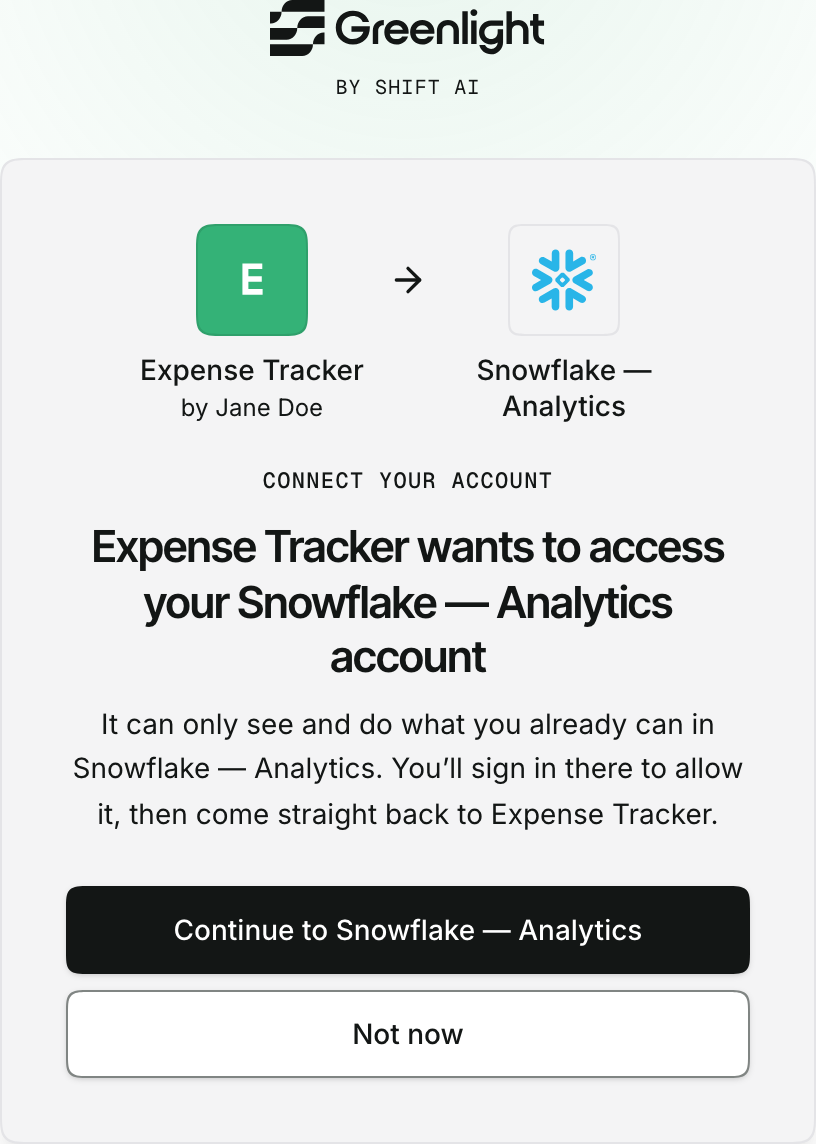
Section titled “How connecting works”Apps write no OAuth code. When a feature needs the person’s account, the app shows a Connect button; Greenlight hosts the rest.
Under the hood
Section titled “Under the hood”Three parties take part, whichever identity provider and upstream you use: the person’s browser, Greenlight, and the upstream. The app never holds a token.
More detail: who runs OAuth, and where tokens live
- Who runs the OAuth flow: Greenlight. It builds the redirect with the OAuth client IT registered, using PKCE and the person’s identity from their Greenlight sign-in as the login hint. It receives the one-time code at its own callback and trades it for tokens server to server, with the client secret it keeps in your vault.
- What the person sees. Usually nothing: when the browser already has a session at the upstream and the client is consented, the upstream answers at once. Otherwise they see the upstream’s own sign-in, consent or second-factor screen, once.
- How Greenlight knows the account is theirs. Before storing anything, it compares the account the upstream returned with the person’s Greenlight sign-in: the directory’s tenant and user id where the upstream issues them, otherwise the username or a verified email. A mismatch stores nothing and tells the person which account was refused.
- Where the tokens live. Encrypted in Greenlight’s database, one connection per person and credential. Greenlight refreshes the access token before it expires and keeps the rotated refresh token. Signing out of Greenlight and back in does not ask the person to connect again.
More detail: how the proxy knows who is who
- How the proxy knows who is who. Every request into an app first passes Greenlight’s sign-in check, the same single sign-on that protects every app. It adds a signed, minutes-long actor token naming the person. The app forwards that header unchanged with its own data key: the key says which app, the actor token says which person.
- What the proxy does. It verifies both, checks that the app holds a grant on the integration, loads that person’s stored token for the granted credential, refreshes it if needed, and makes the call with it.
- What the app sees. The upstream’s answer and nothing else: no upstream token, no secret.
- What is refused. A call with no person behind it, such as a scheduled job, because there is nobody to act as; and a call made by an administrator impersonating someone.
What IT configures
Section titled “What IT configures”-
Create an OAuth client at the upstream with
https://<your Greenlight host>/connect/callbackas its redirect URI, and grant admin consent where the upstream offers it. -
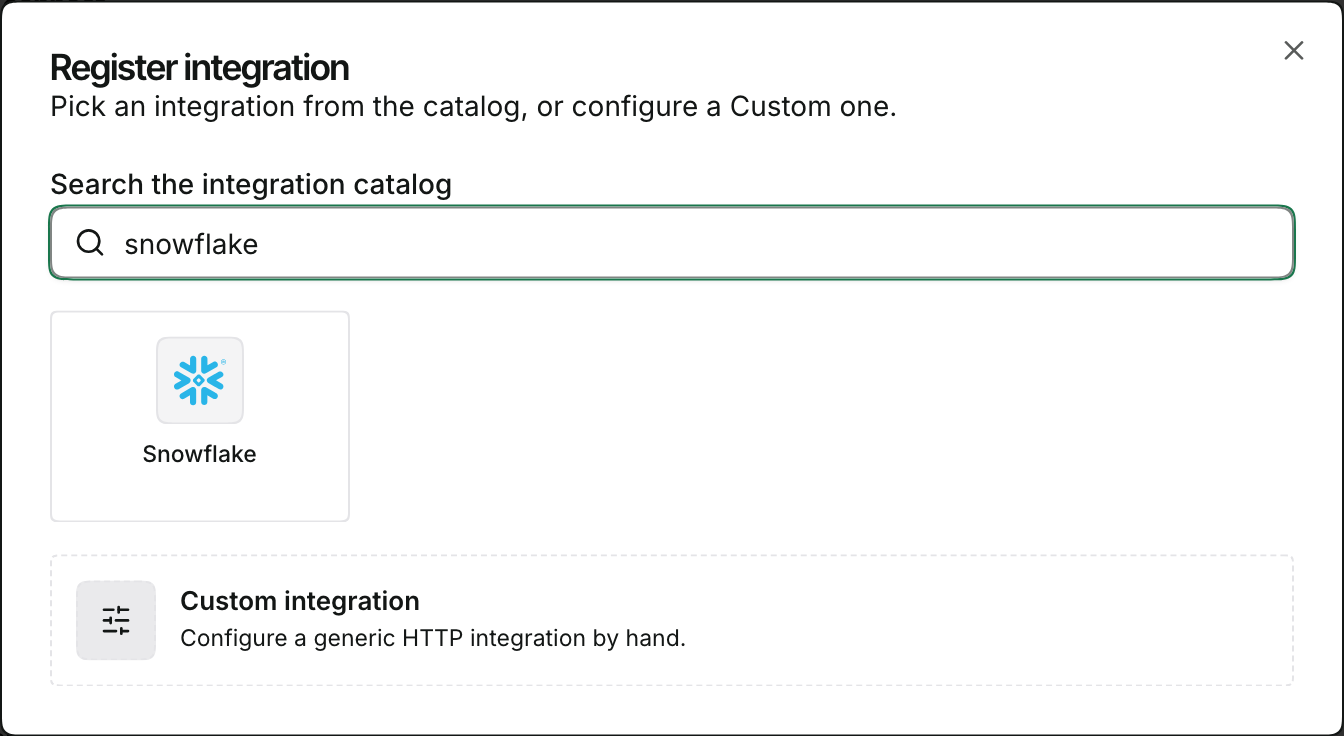
Find it in the catalog. In Integrations → Register integration, search for the upstream, or pick Custom for any other OAuth 2.0 upstream.
-
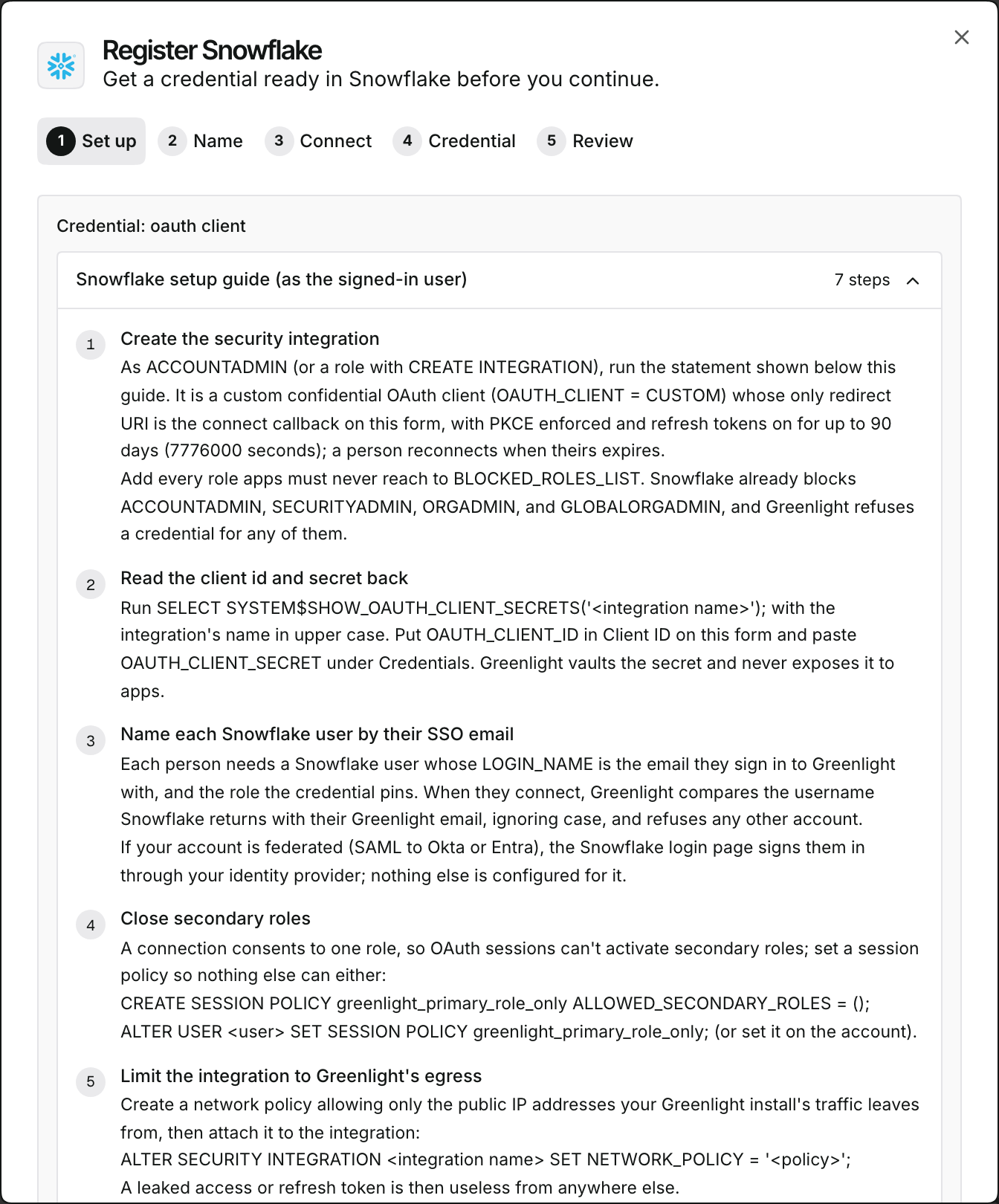
Register it. A catalog entry fills in the URLs and scopes, and a stepped guide walks you through the upstream’s side.
-
Add the credential: the client’s id and secret. Every app granted it reaches exactly that client’s permissions, as each person.
-
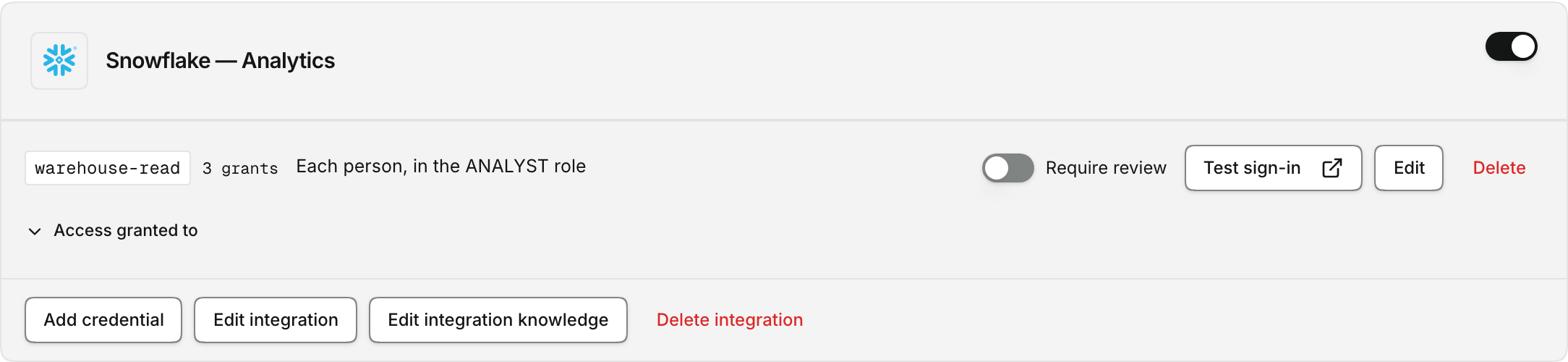
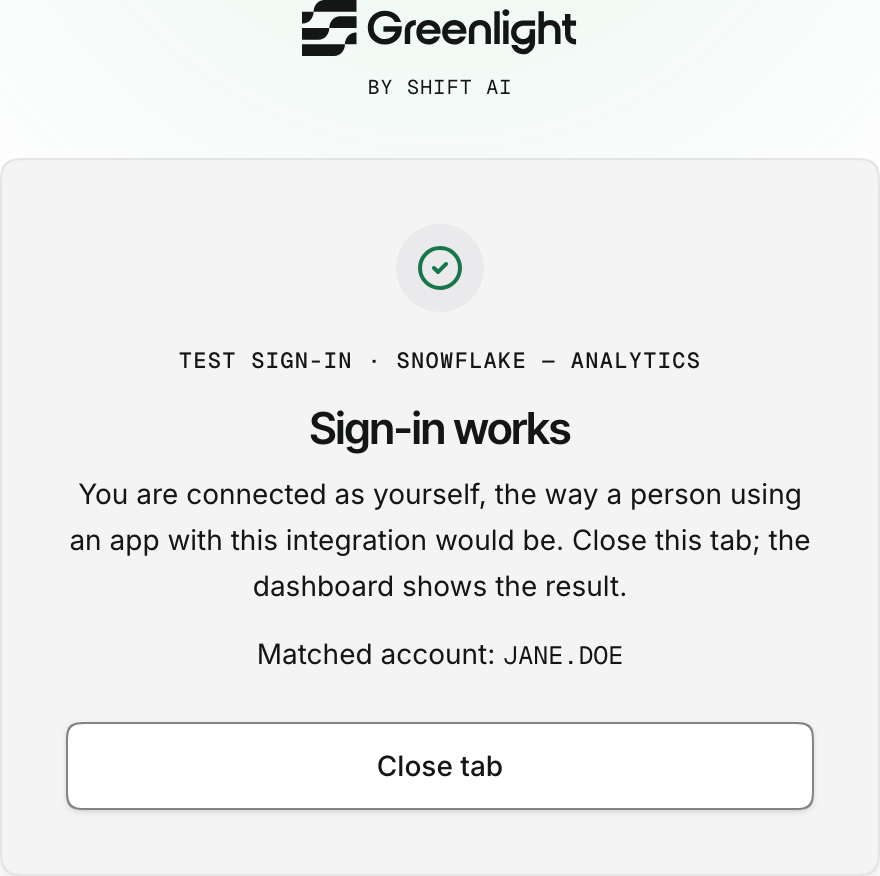
Press Test sign-in on the integration’s card and sign in as yourself. It fails exactly where a person’s connect would, and names the cause and the fix.
-
Grant it to the apps that need it.
More detail: Custom upstreams, credentials and Test sign-in
- Custom upstreams. Supply the authorize URL, token URL, the scopes each person authorizes, and optionally a revocation URL on the same server as the token URL. Include
openidandemailin the scopes, plusprofileandoffline_accesson Microsoft Entra, so Greenlight can confirm the account and request a refresh token. On Microsoft Entra, name your tenant id in the URLs, never/common. - One client per permission set. Two apps that need different permissions on the same upstream get two clients, two credentials and two grants.
- Test sign-in runs the same connect a person runs, so it catches a missing redirect URI, a wrong client id or secret, or missing consent. A pass shows the account Greenlight matched and leaves you connected; the card keeps when it last passed and who tested it. If the upstream shows its own error page instead of coming back, the dashboard lists the usual causes after a minute.
- Always proxied. Tokens are per person, so there is no single value to put in an app’s environment.
Supported integrations
Section titled “Supported integrations”| Integration | Acts as the person in | How each person connects |
|---|---|---|
| Snowflake | SQL statements, in the credential’s role | Snowflake’s own sign-in, through your IdP when federated |
| Microsoft Graph | Mail, calendars, OneDrive and SharePoint files, the directory | Microsoft sign-in |
| Microsoft Fabric | The REST API, the API for GraphQL, semantic models, SQL endpoints | Microsoft sign-in |
| Box | Files and folders | No connect step: one enterprise-wide Box app |
| Custom | Any OAuth 2.0 upstream | The upstream’s own sign-in |
Salesforce and NetSuite list a user passthrough profile that is not selectable yet; register them with client credentials meanwhile. A provider offering both a shared identity and passthrough is registered as two integrations, one per mode, such as salesforce and salesforce-user (Manage integrations).
Snowflake setup
Calls the SQL API (POST /api/v2/statements) as the person, so Snowflake’s own users, roles, grants, masking policies and row access policies decide what each statement sees.
- Sign-in. Snowflake is its own authorization server. People sign in on Snowflake’s login page, through your identity provider when the account is federated, so it works the same for Okta and Entra organizations with nothing to configure on the identity provider.
- Registering. The only profile is Per-user OAuth (Snowflake OAuth). Enter your account identifier (
<orgname>-<account_name>, not the legacy locator); the form fills in the endpoints. - The setup guide renders the
CREATE SECURITY INTEGRATIONstatement with your connect callback in it: a custom confidential client with PKCE enforced and refresh tokens valid for up to 90 days. Read the client id and secret back withSYSTEM$SHOW_OAUTH_CLIENT_SECRETS. - People. Each person needs a Snowflake user whose login name is the email they sign in to Greenlight with; the connect step compares the two. Close secondary roles with a session policy, and attach a network policy limiting the integration to your install’s egress addresses.
Each credential is one Snowflake role. The role is fixed once saved, because each person consents to it when they connect; another role is another credential, with the same client id and secret.
- Greenlight sets each statement’s
roleto the credential’s role, whatever the app sends, so an app runs in exactly the role its grant approved. ACCOUNTADMIN,SECURITYADMIN,ORGADMIN,GLOBALORGADMINand quoted role names are refused.- Each person sees Snowflake’s consent page once per credential. Access tokens last ten minutes and Greenlight refreshes them.
- Scheduled work with nobody signed in needs a Snowflake service user, not this profile.
Microsoft Graph setup
Reaches Exchange Online mail, Outlook calendars, OneDrive and SharePoint files, and the directory as the person, through /me/… on graph.microsoft.com. It is offered to every organization, whatever its identity provider: people in an Okta or Google organization sign in to Microsoft on the connect step.
- Registering. Search the catalog by name or by Outlook, Mail, Calendar, OneDrive or SharePoint, and enter your Entra tenant id. The dialog fills in the endpoints and scopes, and a stepped guide covers the Entra side.
- One registration per purpose. Each credential is one Entra app registration holding the delegated permissions one purpose needs, such as “Greenlight Mail” with
Mail.Send. Entra puts every consented permission into every token it issues, so two apps needing different permissions get two registrations, two credentials and two grants. - Consent. Grant admin consent on each registration. Without it people see a consent page, or cannot connect at all where your tenant’s user consent settings exclude the permissions.
- Policies. A person’s access is the registration’s permissions intersected with their own rights. Conditional Access policies on the services behind the permissions, on all resources and on the registration apply when they connect.
Sending mail is what the entry is built for. POST /v1.0/me/sendMail returns 202, and Exchange saves the message to the person’s Sent Items and routes it through your transport rules and journaling. Sending from a shared mailbox needs Mail.Send.Shared plus Send As or Send on Behalf on the mailbox; without them Graph answers 403 ErrorSendAsDenied.
What the builder agent is told:
- paging and delta links are absolute
graph.microsoft.comURLs, called through the proxy, never followed directly; - a
429carriesRetry-Afterand the app backs off, since the proxy does not retry; - a drive item’s
/contentanswers302to a short-lived URL, which the proxy passes through.
App-only Graph access is not user passthrough: the Microsoft Teams entry and the Graph entry’s Application permissions (app-only) profile act as the app (Manage integrations).
Microsoft Fabric setup
One Microsoft Fabric tile registers everything apps need from one Entra app registration, in four steps:
- Set up: tick REST and GraphQL, Semantic models (DAX) and SQL endpoints as needed.
- Connect: enter the Entra tenant id and each SQL endpoint’s host and database; Greenlight checks it can reach them.
- Credential: enter the application (client) id and the client secret once.
- Review, then Register.
Register creates one integration per ticked piece and one per SQL endpoint, each with its own credential, grants and per-person connection: microsoft-fabric-user, power-bi-semantic-models, and fabric-sql-<database>-user. If one fails, for example because a SQL host is unreachable, Review says which; fix it and press Register again, and only the missing ones are registered. The picker also finds the tile by Power BI, GraphQL, DAX, semantic model, Warehouse, Lakehouse, SQL database and OneLake. Scheduled jobs use the same form with the type set to Service identity, which registers a service principal instead.
The dialog lists only the steps for what you ticked. Open a step’s Details for the reasons, or Copy steps to paste the list into a ticket or an agent.
Before you register, in Entra and on your network:
- Register a dedicated single-tenant app, such as “Greenlight Fabric”. Never reuse the Greenlight sign-in app.
- Under API permissions, add the delegated permissions and grant admin consent:
- REST and GraphQL: Power BI Service
Workspace.Read.AllandItem.Read.All, plusGraphQLApi.Execute.Allfor the API for GraphQL; - semantic models: Power BI Service
Dataset.Read.All; - SQL endpoints: Azure SQL Database
user_impersonation.
- REST and GraphQL: Power BI Service
- Under Authentication, add the web redirect URI
https://<your Greenlight host>/connect/callback. - Under Certificates & secrets, create a client secret and copy its value.
- For SQL endpoints, copy each item’s host and database from Settings → SQL connection string.
- Only for a private install whose outbound traffic leaves through your firewall: allow
login.microsoftonline.comon 443,api.fabric.microsoft.comon 443 for REST and GraphQL,api.powerbi.comon 443 for semantic models, and each SQL endpoint host on TCP 1433 as MSSQL/TDS, not HTTPS. - Only if a workspace has IP firewall rules (Workspace settings → Inbound networking): add Greenlight’s outbound address. On a private install behind your firewall it is the firewall’s public address; otherwise it is the cluster network’s outbound address, in your cloud console.
Give people access, in Fabric and Entra:
- REST and GraphQL: give each person a workspace role (Viewer is least privilege) or item permission. For each API for GraphQL item, choose single sign-on under Settings → Connectivity and share it with Run Queries and Mutations.
- Semantic models: turn on the Dataset Execute Queries REST API tenant setting for a group of the people who use the apps, give each person Read and Build on the model (never Write), and on a model with row-level security add each person to a role on its Security page.
- SQL endpoints: share each item with the people who use it, then narrow with T-SQL
GRANT; on a Lakehouse SQL analytics endpoint, choose its access mode deliberately. - Review the Conditional Access policies on Power BI Service, Azure SQL Database, All resources and the app registration; each person meets them when they connect.
REST and GraphQL reach https://api.fabric.microsoft.com/v1/… and the API for GraphQL as the person, who sees exactly the workspaces and items their role or item permission allows.
- None of the service-principal setup applies: not the Service principals can use Fabric APIs setting, its security group or the 30-day bootstrap. A person without a Fabric license is refused by Fabric itself.
- A GraphQL item must use single sign-on for queries to run as the person; with saved credentials every person sees the same rows. An Azure SQL Database source supports saved credentials only.
- The agent calls the item at
${GREENLIGHT_PROXY_URL}/<integration>/v1/workspaces/<workspace-id>/graphqlapis/<id>/graphql, and is told the limits: read-only sources behind a SQL analytics endpoint, 64 MB and 100 seconds per response, query depth 10, introspection off by default. - Fabric list responses page with
continuationUriand long-running operations answer202 Location; both are followed through the proxy as the same person.
Power BI semantic models setup
Runs DAX as the person through POST /v1.0/myorg/datasets/<id>/executeQueries on https://api.powerbi.com, so the model’s row-level security filters every result to what they may see. A service principal cannot query a row-level-security model at all, which is why this integration acts as the person.
- Who is filtered. Row-level security applies only to people with Read or Build and nothing more: Write, and the Admin, Member and Contributor workspace roles, bypass it.
- Roles. On a model with row-level security, put each person, or a group they belong to, in one of its roles on the Security page; otherwise every query fails with
RLSNotAuthorizedForModel. Role members in a deployed model file may not carry over, so check that page after each deployment. - Limits. One DAX query per call; 100,000 rows or 1,000,000 values and 15 MB per query; 120 requests per minute per person; DAX only. The agent never sends
impersonatedUserName.
Fabric SQL endpoints setup
Each SQL endpoint is a connected database for one host and database, queried as the person over TDS on port 1433, so its own row-level security, column security, masking and workspace roles apply:
| Item | Host | Database |
|---|---|---|
| Warehouse, Lakehouse SQL analytics endpoint | <id>.datawarehouse.fabric.microsoft.com |
the item name |
| Fabric SQL database | <id>.database.fabric.microsoft.com |
the <name>-<guid> in its connection string |
- Calling it. Apps send
{ sql, params }toPOST ${GREENLIGHT_PROXY_URL}/<integration>/querywith the inbound actor token. - Idle endpoints. An endpoint nobody has used for a while can be slow to accept the next connection; Greenlight keeps trying for up to 30 seconds, so the first query waits instead of failing.
- Permission. The token is for Azure SQL Database, so the registration needs delegated
user_impersonationwith admin consent. Someone with no workspace role or item permission is refused at login, and the app receives403 proxy.upstream_user_unmapped. - Masking. Workspace Admins, Members and Contributors see past dynamic data masking, but T-SQL row-level security still filters their rows.
- Lakehouse access mode. Delegated identity reads OneLake as the item owner, so SQL grants, row-level security and masking are the only bounds; user’s identity applies OneLake security roles and ignores table
GRANTs. - Connections. Each person’s queries run on SQL connections opened with their own token and used by nobody else: at most two per person, closed after five idle minutes, never reused past the token’s expiry. Revoking someone’s connection closes them on their next call.
inspectIntegrationDbruns as the developer making the call.
Box setup
Reaches Box files and folders as the person, so each call sees exactly what they can open in Box. Box accepts no outside sign-in, so there is no connect step and no per-person token at rest: IT registers one Box app with Client Credentials Grant, and on every call Greenlight finds the Box account whose login is the person’s email and asks Box for a token for that account. The profile is named “Client Credentials Grant (as the user)”.
Setting it up, following the stepped guide in the Register dialog:
- Create a Server Authentication (Client Credentials Grant) app in the Box Developer Console.
- Set App + Enterprise Access, and choose the content scopes apps need plus Manage users, which Greenlight needs to find each person’s account.
- Turn on Generate user access tokens; leave Make API calls using the as-user header off.
- Have a Box admin authorize the app in Admin Console → Platform → Platform Apps, and Reauthorize it after any change to its scopes or access level.
- Enter the app’s Client ID and Enterprise ID, and paste its Client Secret. A mistyped Enterprise ID refuses everyone; correct it by editing the integration.
Box refusing to issue a token, usually because the app is not authorized in Platform Apps or Generate user access tokens is off, returns 502 proxy.upstream_auth_failed. A file’s /content answers 302 to a short-lived dl.boxcloud.com URL, which the proxy passes through. Uploads to upload.box.com do not go through this integration. Every call is audited as the person, with their Box login and user id.
Disconnecting and revoking
Section titled “Disconnecting and revoking”- People disconnect their own connections; IT revokes any person’s through the API (
DELETE /api/users/<id>/connections), and deactivating a person deletes theirs. - Deleting a credential or its integration revokes every connection made through it.
- Every revocation is audited. Greenlight deletes its copy of the token, tells the upstream where it offers revocation, and refuses the next proxy call.
More detail: reconnecting, pruning, and what apps may store
- Connecting again replaces the previous authorization. Connections with neither a sign-in nor an update for ninety days are pruned.
- What an app reads as one person stays theirs. Anything an app caches or stores from these calls is keyed by the person it was read as and shown only to them, never pooled into a shared table or served to a colleague. Work for several people runs once per person, as each of them; a view across people needs a service-account integration IT granted for that purpose.
Troubleshooting
Section titled “Troubleshooting”What a person sees when connecting does not work
| What happened | What the person sees |
|---|---|
| They have not connected yet | The app’s Connect button, which opens the Connect page |
| Their connection stopped working | The same button and page, worded Reconnect |
| They declined, or chose the wrong account | Greenlight’s result page, with Try again and Back to the app |
| The upstream sent an error back | The result page, with the upstream’s code in a line for IT |
| A setup error kept the upstream from sending them back | The upstream’s own error page; next time, the Connect page says what to tell IT |
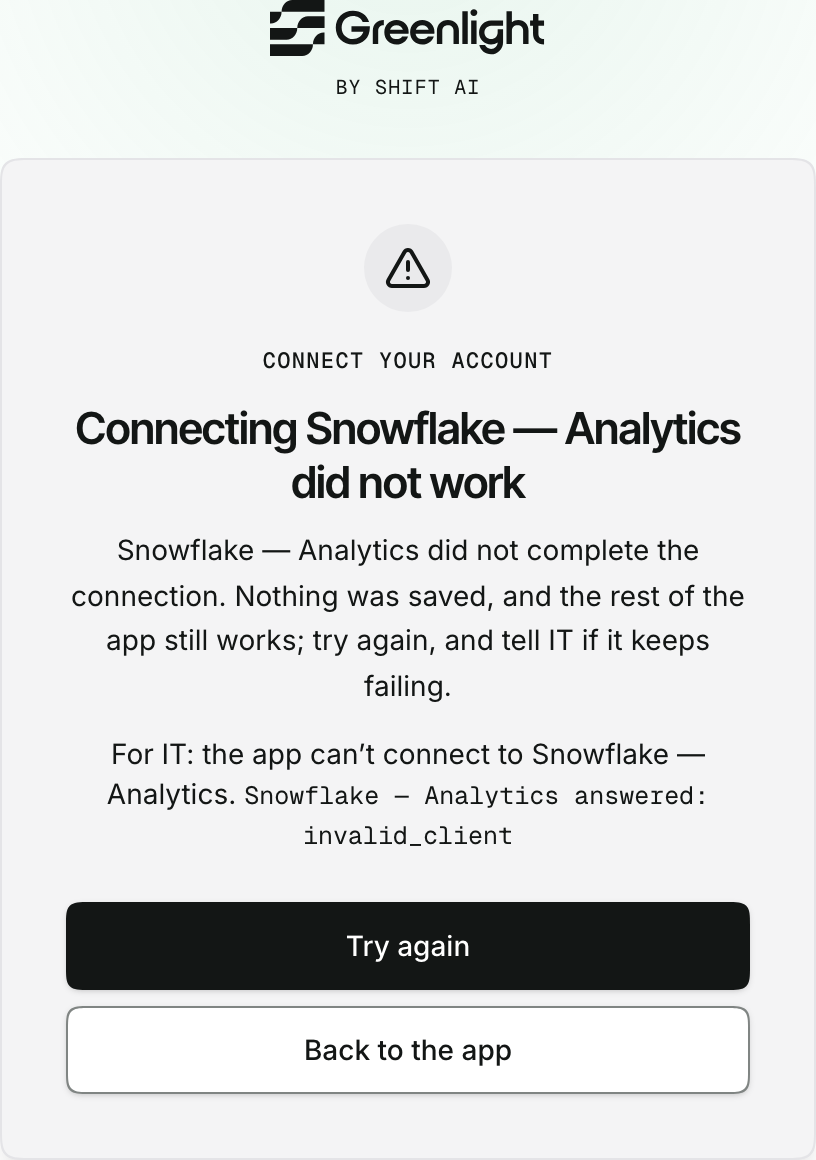
Behind the button, the proxy answers 401 proxy.user_connection_required with a connect_url (error reference). The Builder Skill gives apps the button and its states, so an app never sends anyone to the upstream without a click. Several integrations on one app each get their own button.
If the upstream refuses to issue a token because an administrator has not consented to the client, the proxy answers 502 proxy.upstream_auth_failed and names the client. Connecting again would not fix that, so Greenlight does not ask the person to.